

HIGHLIGHTS A deep dive into Leica LUX, Leica’s iPhone camera app, its easy-to-use interface, Leica looks and lens simulations and edit software.
WRITTEN AND SHOT ON iPHONE BY: STEVE HOLLOWAY
Here’s how Leica brought their iconic Leica looks to iPhone photography. In 2023, Leica acquired Norwegian smartphone photography company Fjorden Electra AS.
Leica integrated their app and accessory expertise with Fjorden’s and, in 2024, introduced the Leica LUX app.
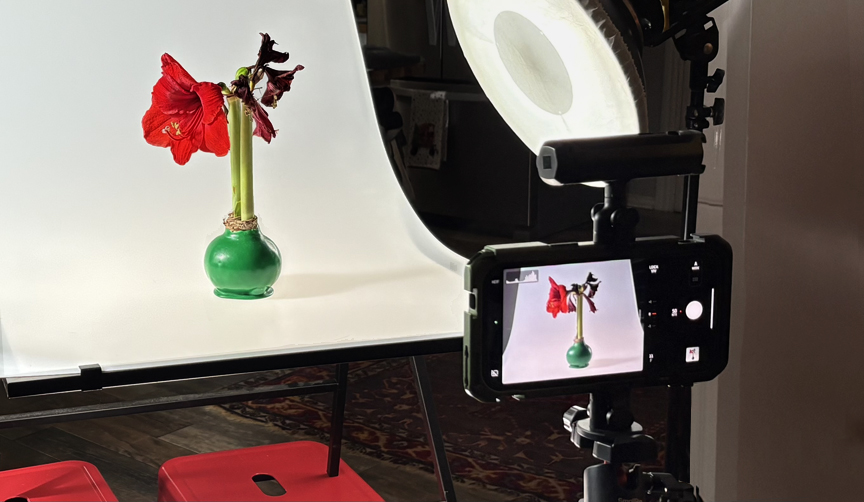
LEICA LUX ON iPHONE.
Leica LUX brings the unmistakable photographic Leica aesthetic to iPhone.
The proprietary Leica Looks and Leica lens simulations recreate the film styles and unique visual signature Leica is known for including the Leica I Model A (1925) 50 f3.5 lens.
Leica is bringing their 100+ years of image making to the iPhone experience. That might be why they made the decision not to include video capabilities in LUX since they are rooted in still image capture.
My main focus is still photography so I open the native iPhone camera for videos.
If you primarily shoot video, look at the Blackmagic Camera App.
Before Leica LUX.
Over the last four years, I tested other camera apps looking for a tool I could use to capture images, especially monochrome images, with the look and feel of vintage glass and film emulsions.
Each time I went back to shooting iPhone’s native camera.
Then, after only three Leica LUX text shoots, it became my go to, primary camera app. Here’s why.
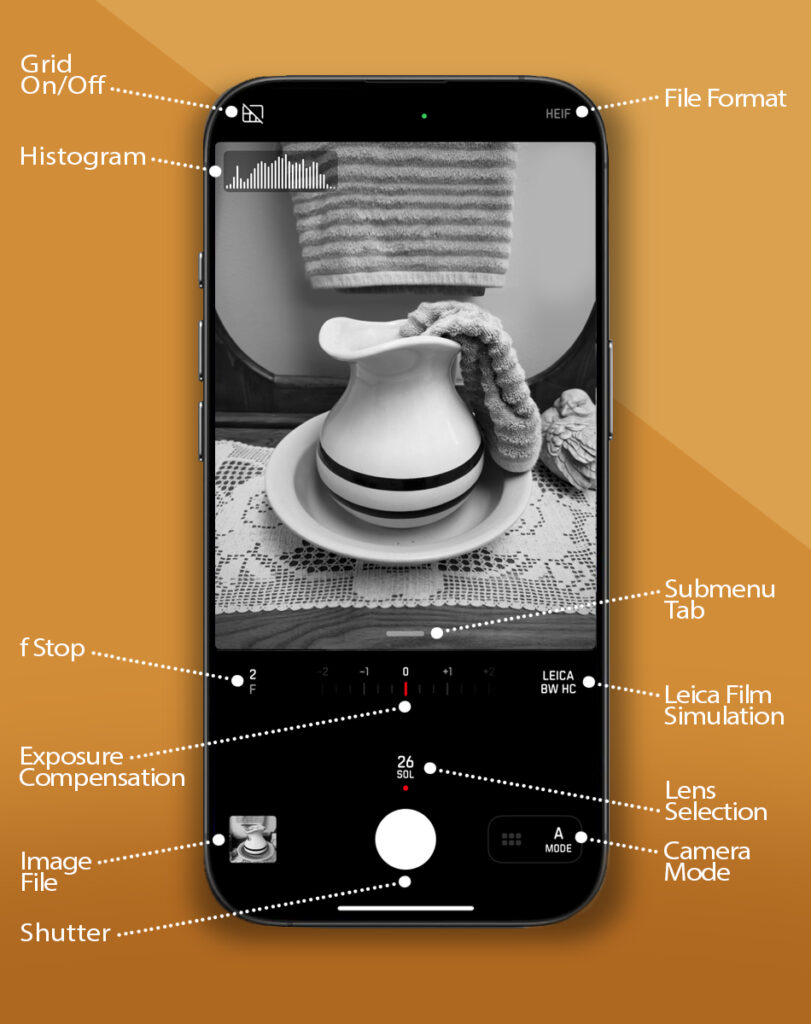

The LUX learning curve is short. EVERY critical function is at your fingertips, in logical positions, not hidden in pull down menus.
One tap and you’re changing lenses. Or file format. Or film simulation. Scroll to your selection. Tap again. You’re ready to shoot.
One of my favorite LUX design features is the placement of the Exposure Compensation slider. It’s always displayed, always active and easily reached. Just slide to adjust and shoot (samples below).

Scan the Leica LUX screen and you find a suite of nine fixed and two programmable camera controls:
- Grid. Tap to toggle on/off. (This is a programmable button).
- File format. Always displays. In Photo Mode, tap to select HEIF, ProHEIF or PRO file format. PRO formats are Leica RAW options and are only available in Photo Mode. (This ia a programmable button).
- Histogram. Confirm exposure at a glance.
Aperture Mode controls:
- Aperture selection. Tap to change f-stops and control depth of field (you can also change these later during the edit).
- Exposure compensation. Slide to lighten or darken the image.
- Leica Look. Tap to select from 17 color and monochrome film simulations (you can also change these later during the edit).
- Last image preview. Tap to open image library.
- Lens selection. To change lenses, tap on the selected lens and the lens menu pops up. Lenses are previewed as you tap on them. Tap on the screen again and you’re ready to shoot.
- Aperture/Photo mode selection. Tap to toggle between modes.
In Photo Mode three controls change:
- File format becomes active and allows you to select HEIF, ProHEIF or PRO file format. PRO formats are Leica RAW options.
- Lens selection changes to the native iPhone camera lenses.
- Aperture selection changes to image format proportions.
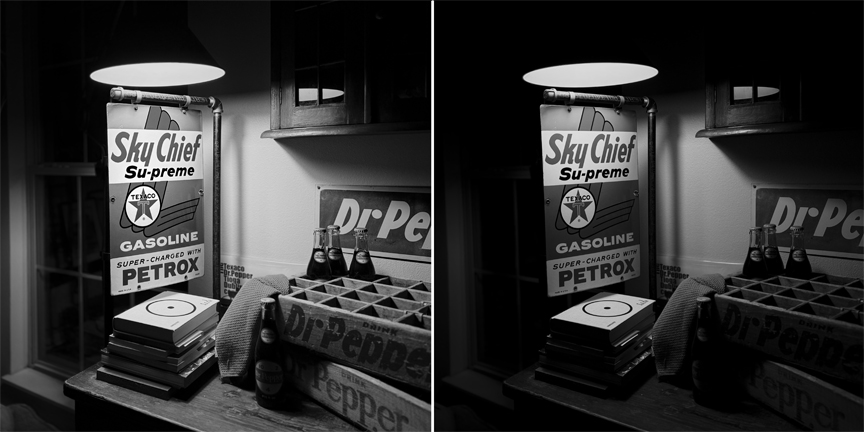

Again, Leica’s Exposure Compensation is one of my favorite features.
The placement and user interface of Exposure Compensation shows how much thought Leica gave to every detail of the LUX app. Located just a thumb reach away from the Shutter button, next to the preview screen, the Exposure Compensation slider lets you take an image from a brighter feel to a darker, almost nighttime like exposure.
The image on the left (above) was captured with the Leica LUX i-Solaris 26mm f1.5 lens simulation using the auto calculated exposure of ISO 160, 1/120th second, f 1.5.
Thumb scrolling the exposure down by 1.5 stops produced the darker image on the right with an exposure of ISO 50, 1/120th second, f 1.5.
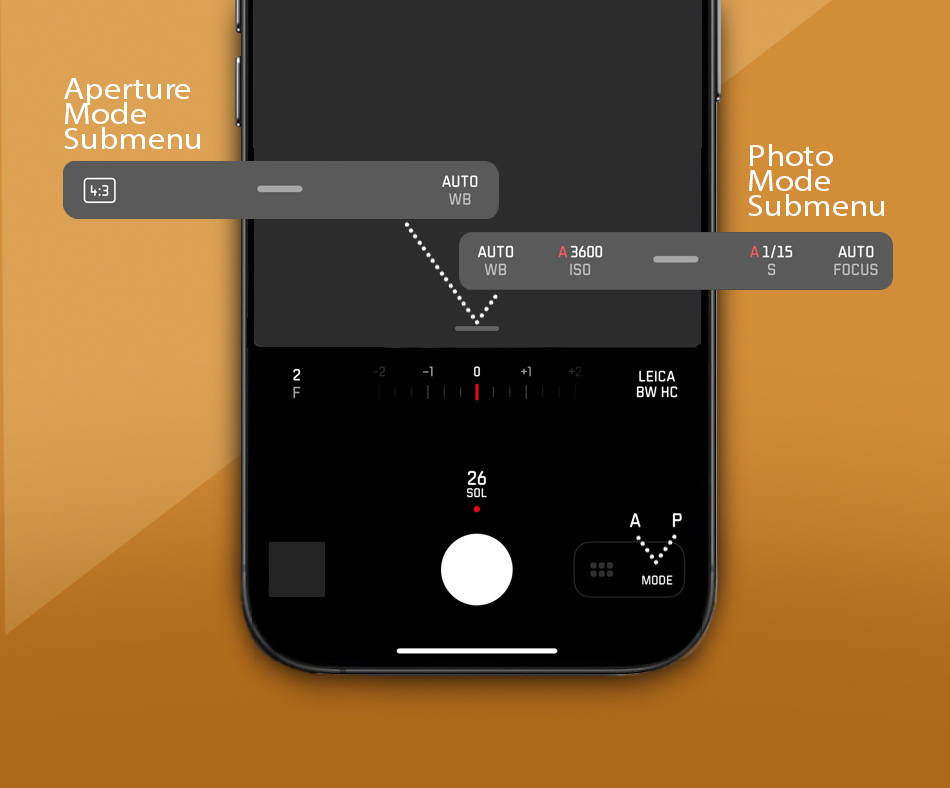

Tap the small tab bar above the Exposure Compensation slider and a submenu opens.
In the Aperture Mode submenu you can lock white balance and change image proportions.
In the Photo Mode submenu you can lock focus or white balance and manually set shutter speed and ISO.


Leica brought their attention to detail they’re known for to every aspect the Leica LUX app. The lens and film simulations use computational photography to control every part of image capture and processing.

Shooting in Aperture Mode captures images using the visual signatures of these nine Leica lenses.
- I-Solaris 26mm F/1.5
- Summilux-M 28mm f/1.4 ASPH
- Summilux-M 35mm f/1.4 ASPH
- I-Solaris 40mm F/1.5
- Noctilux-M 50mm f/1.2 ASPH
- Leica I Model A (1925) 50mm f/3.5
- I-Summicron 120mm F/2 ASPH
- I-Thambar 120mm F/2.8
- APO-TELYT-M 135mm F/3.4
Leica LUX uses Leica’s proprietary image processing engine, its machine learning and computer-aided photography to capture images faithful to Leica’s unique sharpness and color.
And to reproduce the unmistakable look each of these lenses are known for including, of course, the characteristic bokeh effect.

Leica LUX uses Leica color science to offer a selection of color grading and film presets that emulate those of Leica cameras. Options include Leica Classic, Contemporary and Black and White.
When using the Leica Standard Look, the proprietary image processing in Leica LUX already displays colors and contrast differently and more film like than the native iPhone camera app.
Pairing Leica LUX with the iPhone camera becomes the key to artistic expression, rich textures, and impressive nuances.
While you’re editing inside of the Leica LUX app, you can change the film look, lens simulation and depth of field (by changing the f-stop).
It amounts to a flexible color grading and image control pallet you can apply anytime.
After you finalize an edit you can replace the original file or save it as a new file.

Leica LUX has a ‘Freemium’ model that lets you try the Leica experience with access to the Automatic Photo mode and the Aperture Mode, including emulation of the Leica Summilux-M 28 mm f/1.4 ASPH and five Leica Looks.
For the full feature version the subscription is $6.99 monthly or $69.99 a year.
I read comments that it’s too expensive for a camera app. I even put off subscribing for a time to consider the cost.
Still, there was Leica’s heritage. Leica’s 100+ years of quality and attention to detail.
The images created by Henri Cartier Bresson. Images I’ve looked at looked at and been inspired and influenced by for years.
And, my more recent influence, Greg Williams whose images for Hollywood Insider images are shot on Q and M Leicas (and who Leica chose to create a signature Artist Look).
I subscribed. For me it’s more than worth the cost.
Will it do everything a $7,790.00 Leica Q3 Monochrom Digital Camera will? Of course not.
But the images it creates are faithful to the iconic Leica looks.
It’s my go to, “default” camera app. I shoot with it every day, creating images I had tried to emulate for years. Some images are edited in the LUX app but most are used straight out of the camera.
Leica has always been favored by photographers for being small and unobtrusive, allowing us to work unnoticed. Moving the Leica aesthetic to iPhone is faithful their commitment to producing small form factor tools that let us blend to action while producing extraordinary images.


Jump to any Point of View how to guide, process deep dive or a pre iPhone portfolio plus how influences shape the storytelling process and a memoir that looks at the story behind the stories and to Nonlinear Content galleries and stories.

Introduction
Become a storyteller
Technology
- 02A Digital evolution.
- 02B Annie Leibovitz.
- 02C From Batman to the iPhone.
- 02D Henri Cartier-Bresson’s Leica.
- 02E Moving from film to digital to iPhone.
- 02F The self portrait series.
- 02G iPhone camera rigging.
- 02H Leica on iPhone (yes, Leica).
- 02I Lighting notes: Supplemental light.
- 02J The new USB-C iPhone workflow

- 03A Working with light.
- 03B The scout.
- 03C Shooting during the golden hour.
- 03D Photographing people.
- 03E Details, shadows, shapes and textures.
- 03F Plate shots and reflections.
- 03G Feed your passions.
- 03H People and food, two favorites.
- 03I On the road.
- 03J Wall art (it’s not what you think).
- 03K Transitional images.
- 03L Night photography.

- 04B Assemblages and abstractions.
- 04C Change the composition of an image.
- 04D Color correction vs color grading.
- 04E Create motion with Live Photo.
- 04F Resize images and retain detail.
- 04G Software and skill building resources.
- 04H On device apps.
- 04I Offboard resources.

- 05A Two key iPhone features.
- 05B Camera and light kit ideas.
- 05C Copied on iPhone.
- 05D Learning post production.
- 05E Designing with type.
- 05F Learning from cinema.
- 05G The three lens solution.